
Duplicate File Remover for PC: How to Find and Remove Duplicate Files
Sep 19, 2026
First story
Seeking
Visibility


Duplicate files can take up valuable storage space when the same photos, videos, documents, audio files, or other data are saved in multiple folders. This often happens after downloading files several times, copying data between drives, creating backups, or moving files from one location to another.
A duplicate file remover for PC can help identify these repeated files so you can review them and decide which copies are no longer needed. Before using dedicated software, you can also look for duplicate files manually using Windows File Explorer.
Why Do Duplicate Files Appear on a PC?
Duplicate files usually appear when the same data is saved more than once in different locations. Common situations include:
• Copying files between different folders
• Downloading the same file more than once
• Keeping multiple backup copies
• Transferring photos and videos from external storage
• Saving edited or renamed versions of the same file
• Restoring files from backups
The problem becomes harder to manage when thousands of files are stored across several folders or drives. Similar file names do not always mean that the files are identical, so checking only the name may not be enough.
How to Remove Duplicate Files Manually
Windows does not provide a dedicated duplicate-file scanning option in File Explorer. However, you can manually search for possible duplicate files by checking file names, sizes, types, and locations.
Follow these steps:
1. Open File Explorer on your Windows PC.
2. Go to the folder or drive where you suspect duplicate files are stored. Start with one location instead of checking the entire computer at once.
3. Change the folder view to make file information easier to compare. Details view can show information such as file name, date, type, and size.
4. Sort the files by name, size, type, or date. Sorting can help you identify files with similar names or sizes.
5. Compare suspected copies. Check their names, file sizes, file types, and folder locations.
6. Open important files when necessary. For photos, documents, videos, or other personal data, verify the content before deciding whether a copy can be removed.
7. Delete only the copies you do not need. Move them to the Recycle Bin first if you are unsure.
8. Repeat the process for other folders or drives where duplicate files may exist.
This approach can work when you have a small number of files and only a few folders to check.
Limitations of the Manual Method
Manual checking becomes difficult when a PC contains a large amount of data. Comparing files one by one can take considerable time, especially when duplicate copies have different names or are stored in different folders.
There is also a risk of deleting the wrong file if you rely only on the file name. Two files can have similar names while containing different data. For this reason, important files should be checked before deletion.
If you need to examine multiple folders or drives, a dedicated duplicate-file detection tool can make the identification process more organized.
How to Find Duplicate Files Using Software
A duplicate file finder can scan selected locations and identify files that appear more than once. This approach is useful when manually comparing files is taking too much time.
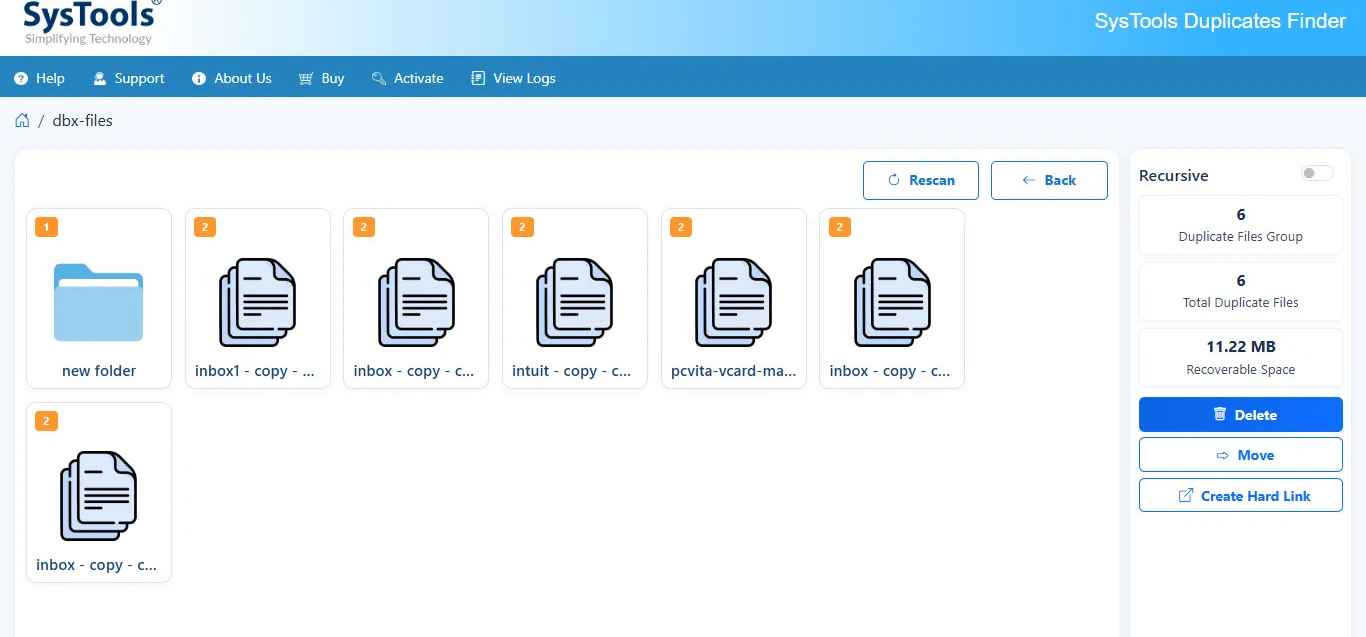
SysTools Duplicate File Finder can be used to scan selected folders or drives and identify duplicate files based on file details and content. It can help users locate duplicate photos, videos, documents, audio files, and other data before deciding what to remove.
The software method is particularly useful when duplicate files are spread across multiple locations and manual comparison is difficult.
The general process is based on selecting the location that needs to be checked and reviewing the detected duplicates.
1. Open SysTools Duplicate File Finder on your PC.
2. Select the folder or drive that you want to check for duplicate files.
3. Choose the required detection method based on the available file details or content comparison options.
4. Start the scanning process to examine the selected location.
5. Review the detected duplicate files after the scan is complete.
6. Check the files before removal to make sure that you do not delete an important copy.
7. Remove unwanted duplicate files according to your storage requirements.
The review step is important because finding duplicate files and deciding which copy should be deleted are two separate tasks.
Relevant Software Features
SysTools Duplicate File Finder provides capabilities that are directly related to duplicate-file detection:
• Selected folder or drive scanning: Check specific storage locations instead of manually searching every folder.
• Duplicate detection based on file details and content: Helps identify repeated files using more than just their names.
• Support for different file types: Users can identify duplicate photos, videos, documents, audio files, and other stored data.
• Duplicate review: Detected files can be checked before unwanted copies are removed.
These features can reduce the amount of manual comparison required when a computer contains many files.
Manual Method vs Software Method
Point Manual Method Software Method
Process Search and compare files in File Explorer Scan selected folders or drives
File comparison Based on visible file information and manual checking Uses available file details and content detection
Suitable for Smaller collections Larger or multiple storage locations
User effort More manual work Less manual searching
Removal User identifies and deletes copies User reviews detected duplicates before removal
The manual approach may be enough if you have only a few folders to check. A duplicate file remover for PC can be more practical when duplicate data is spread across larger storage locations.
Conclusion
Finding duplicate files manually is possible by using File Explorer to compare file names, sizes, types, locations, and content. However, this approach can become time-consuming when a PC contains many files.
A dedicated duplicate file remover for PC provides another way to scan selected folders or drives and identify duplicate data. SysTools Duplicate File Finder can help detect duplicate files based on file details and content, allowing users to review unnecessary copies before removing them.
- First Story